List view & Calendar view
Manage Messages has two ways to look at the same data — switch between them any time with the toggle at the top of the section.
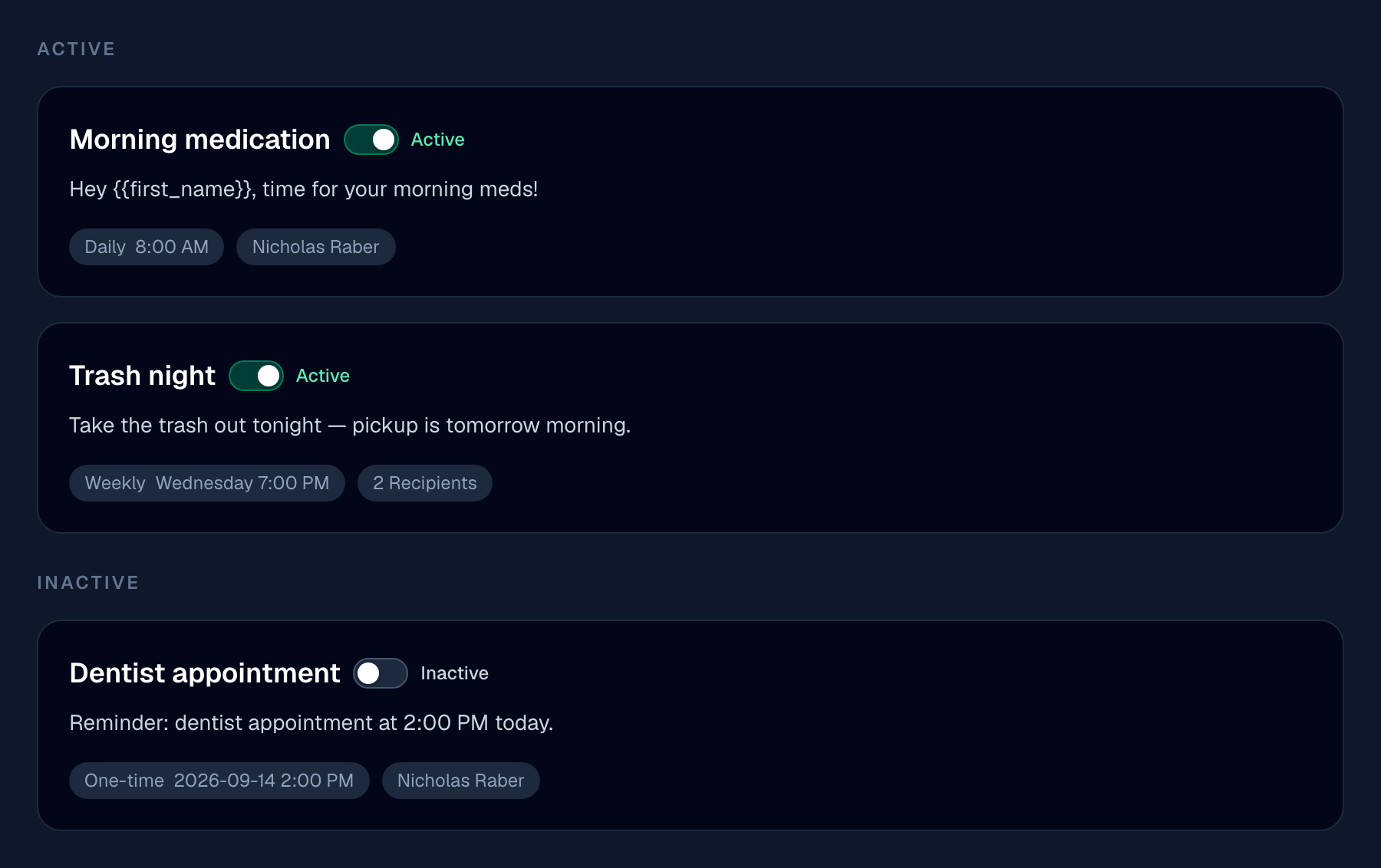
List view groups every message into Active and Paused sections. Drag a card between sections to change its status, or drag within a section to reorder.
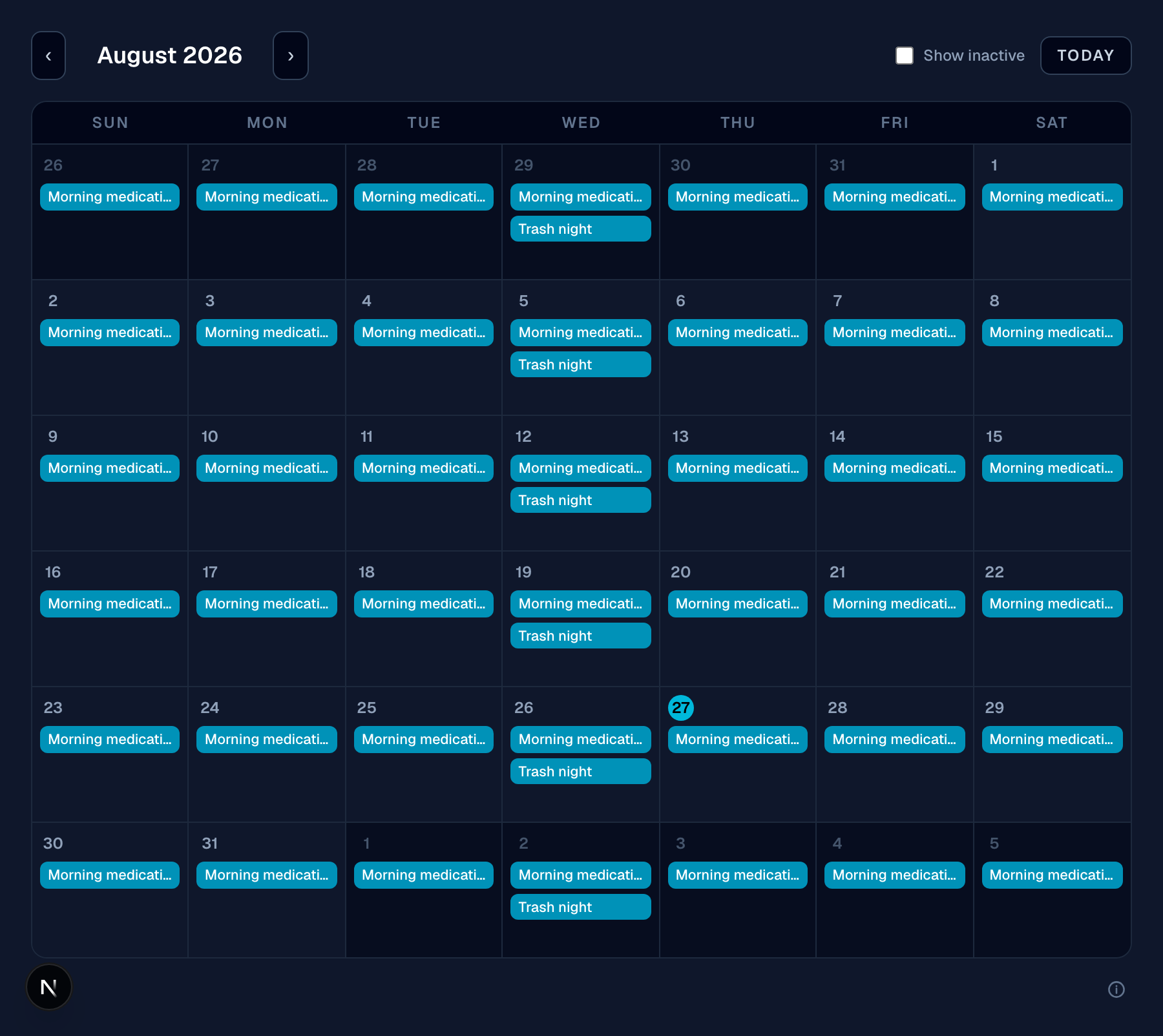
Calendar view shows the current month with every message on each day it actually fires — a daily reminder shows up on every day, a monthly one only on its date. Days that have already passed are dimmed. Paused messages are hidden by default; check Show paused to see where they'd land too.
Clicking a day (rather than a specific message) opens a day view listing everything scheduled for it, with a button to add a new message for that exact day — closing that editor brings you right back to the day view. Hovering a day also reveals a quick + New Message shortcut without opening anything.
Found a bug, or something not working as described?
textmetoo is in early access — tell us what happened and we'll get on it.